Live
MagicInk for Digital Answer Sheet Evaluation
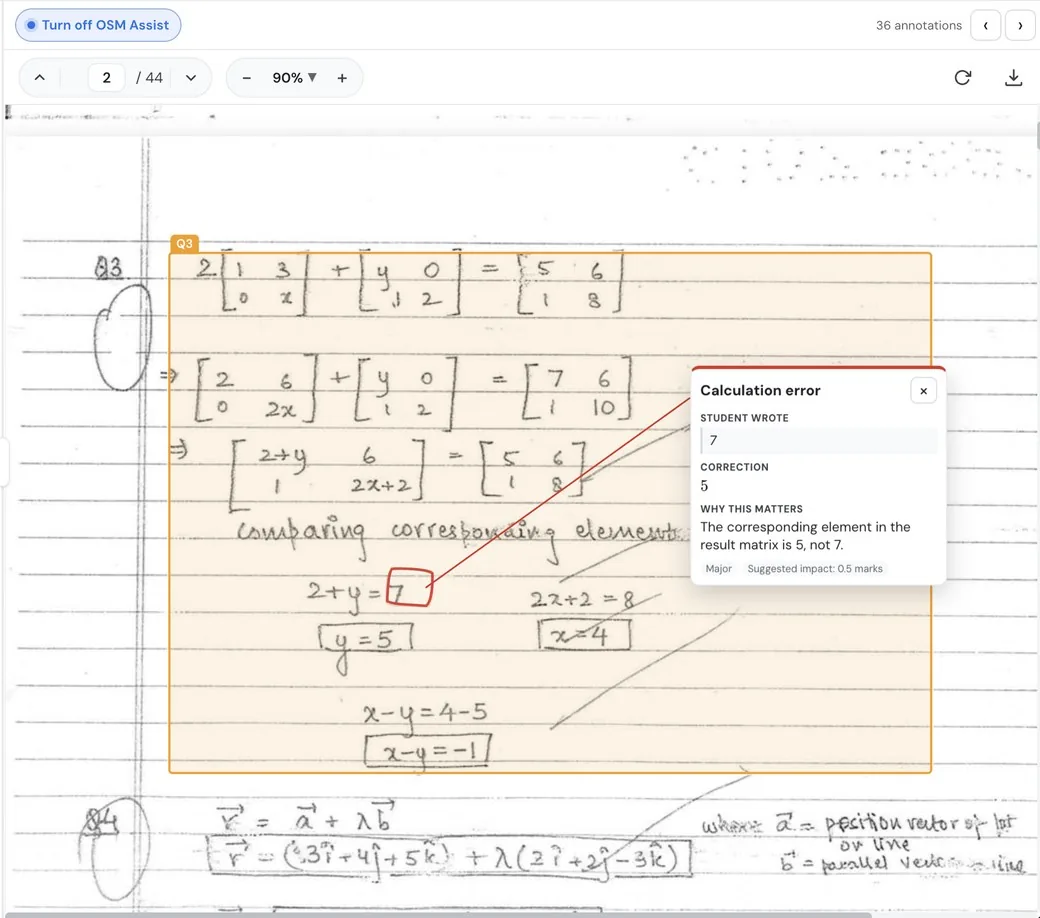
MagicInk marks each scanned answer sheet on screen with ticks, crosses and comments against your scheme, just like a teacher.
Live for schools and coaching institutes
- Organize
- View
- Mark
- Moderate
Students get the marking, not just the marks
The marking shows where marks were won and lost against the scheme, so students see how they were graded and what to work on, not just a number.
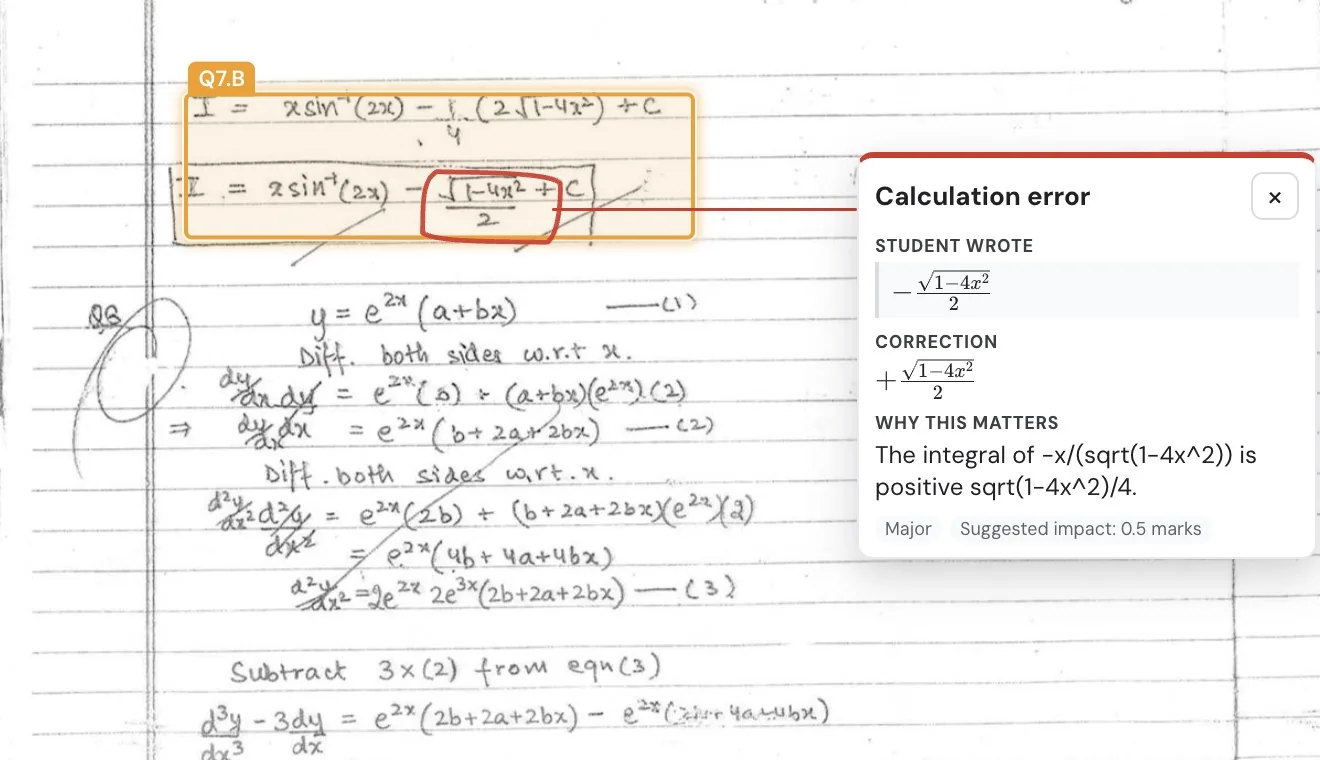
The mistake is circled right on the sheet, with a short note on what went wrong and why, so the student sees more than a number.
Saraswati marks just like a teacher would
Saraswati goes through all the answer sheets and suggests marks against your scheme. Instead of marking every paper yourself, you review the marks and change anything you do not agree with.
Saraswati handles the first pass; you stay the final word. Accept the marks in one tap, or change any score before you move to the next script.
Frequently asked questions
- What appears in the marking view?
- The workflow presents scanned answer sheets alongside evaluation information so teachers can inspect responses and review question-wise marks. Readable scans and the correct question paper and marking scheme are essential.
- Who makes the final marking decision?
- The teacher reviews the evaluation and can correct marks before approving a report. If handwriting or a mark is uncertain, check the original response against the marking scheme rather than relying only on an annotation.
- How do I try MagicInk?
- MagicInk is live. Sign in to explore your school’s enabled evaluation features. Availability and pricing can depend on your account and the workflow enabled for your school.
- Are annotations the same as final report marks?
- Annotations help you inspect the answer sheet. Review the question-wise marks and final total in the evaluation report before approving or sharing it; the teacher’s reviewed result is what matters.
Take flight with Saraswati AI
Your first 10 evaluations are free. Bring your own marking scheme and see question-wise results in minutes. You approve everything before it is shared.